Read less. File everything. Find anything.
emailbudAI summarises your email with a private AI that runs on your own PC, turns what needs doing into tasks, files every email to its project folder, clears it out of your Inbox, and lets your whole team search what's been filed.
Windows 10 and 11. Works with Outlook (classic and new), Microsoft 365, Gmail and other IMAP mail. New accounts are by invitation only for now. Register your interest, or if you have an invite code, sign in with it.
The installer isn't code-signed yet, so Windows may warn you about it, and the Outlook add-in is added by hand. What to expect.
1 · Read less
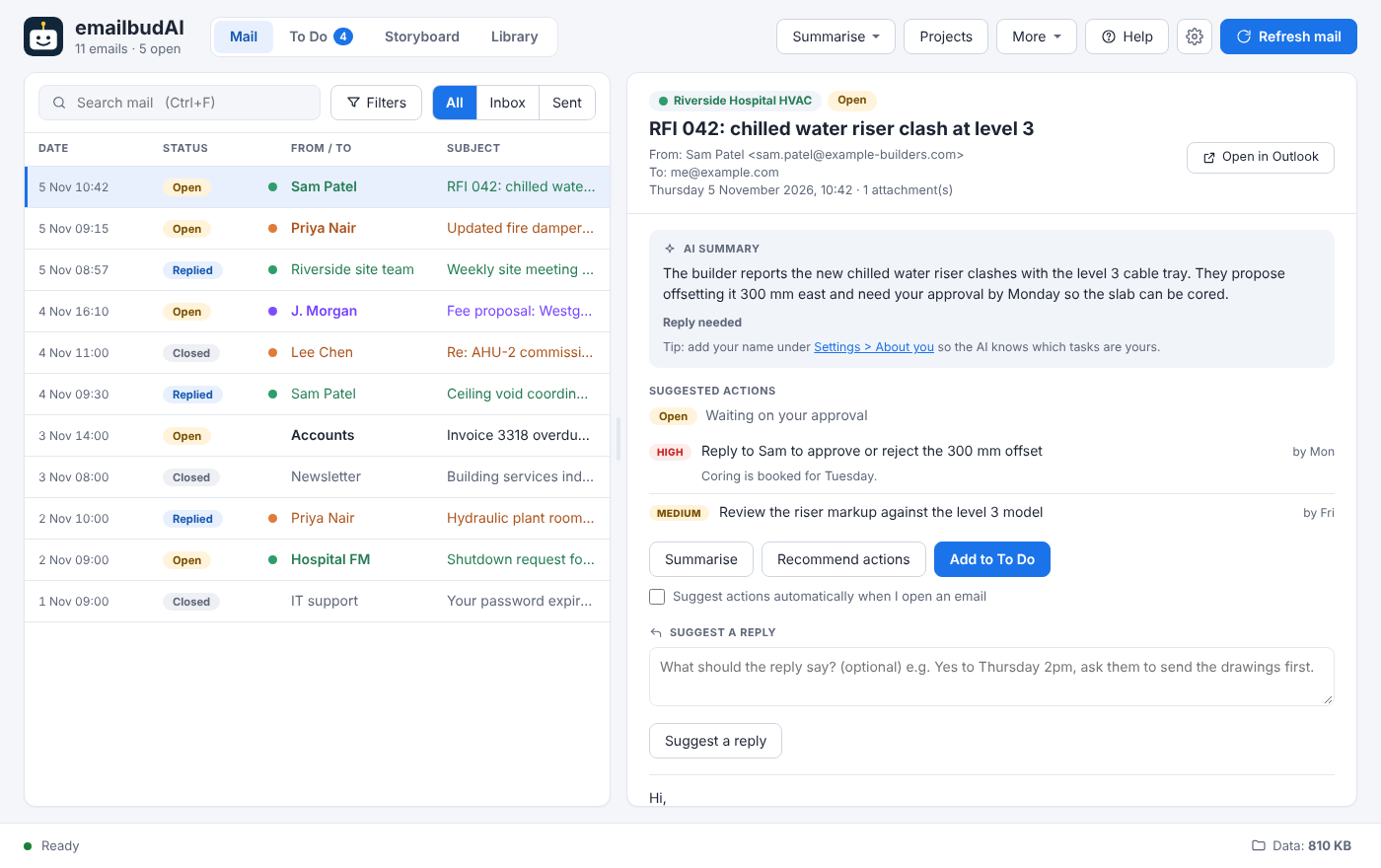
Every email summarised, every action caught
- Short summaries, newest point first, written to you as “me”.
- Open, Replied or Closed out at a glance, worked out from your Sent mail.
- Suggested actions with due dates; one click adds them to To Do (and Microsoft To Do or Outlook Tasks).
- Suggested replies in your tone, opened in Outlook ready to send.
- Weekly PDF minutes per project, and a scheduler that does it all in the background.
2 · File everything
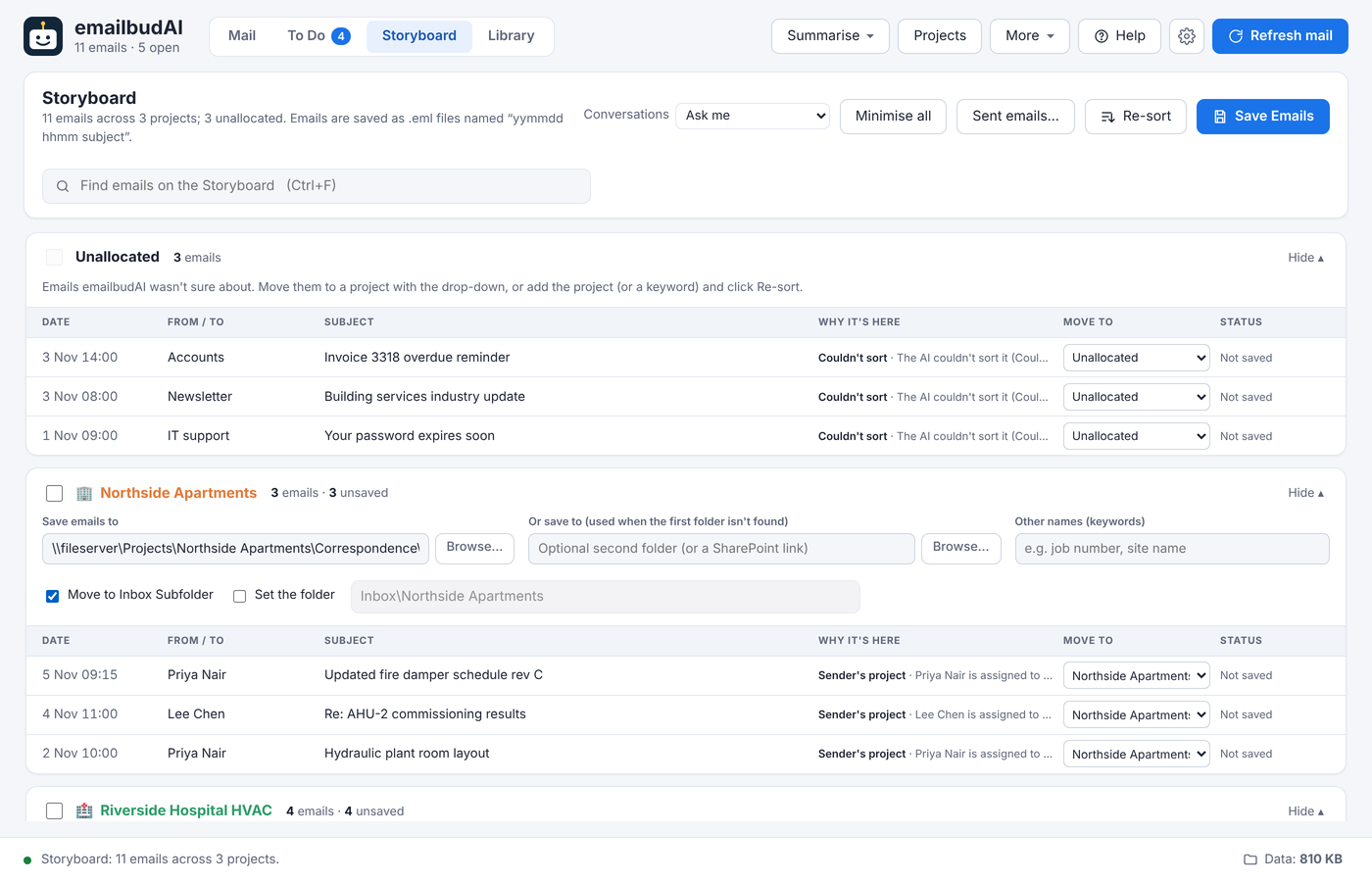
The Storyboard files each email to its project
- Sorted for you by subject, job number, content and sender; the AI handles the rest, and anything unsure waits in Unallocated.
- Drag to fix: select one email or many and drop them on a project. Your choices stick.
- Save Emails puts each one in the project folder, on your file server or SharePoint, as .msg or .eml with attachments, and marks it “Saved with emailbudAI” in Outlook.
- Whole conversations: file one email and emailbudAI offers the rest of the chain; new replies follow automatically.
- Sent mail too: saved automatically, or chosen as you send with File on Send in the new Outlook.
- Find any email on the board in a moment (Ctrl+F).
3 · Clear your Inbox
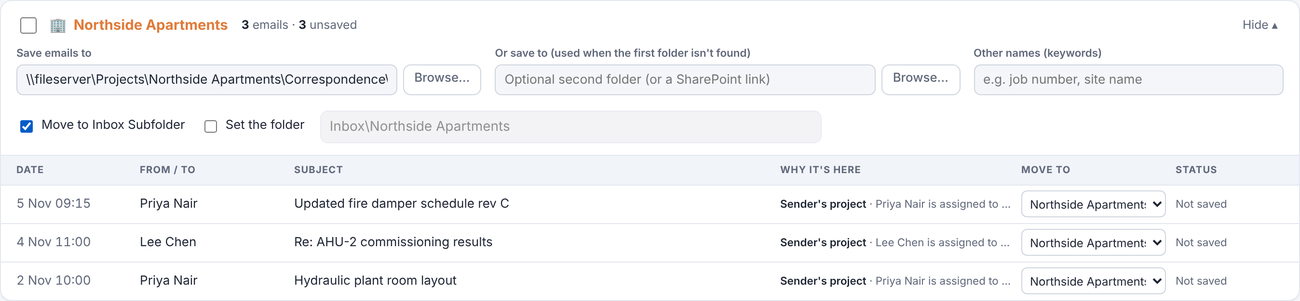
Saved emails move into the project's Inbox folder
Tick Move to Inbox Subfolder on a project and every email you save leaves the Inbox for that project's Outlook folder. emailbudAI uses the folder you set, or finds one with the project's name anywhere under your Inbox, or creates it. Only saved emails move, so nothing leaves the Inbox before it's filed. Move an email to another project and it follows.
Classic Outlook and Microsoft 365. Moving a filed email to a different project also tidies the old project folder (kept 30 days, or in SharePoint's recycle bin), so each folder holds only what belongs there.
4 · Find anything
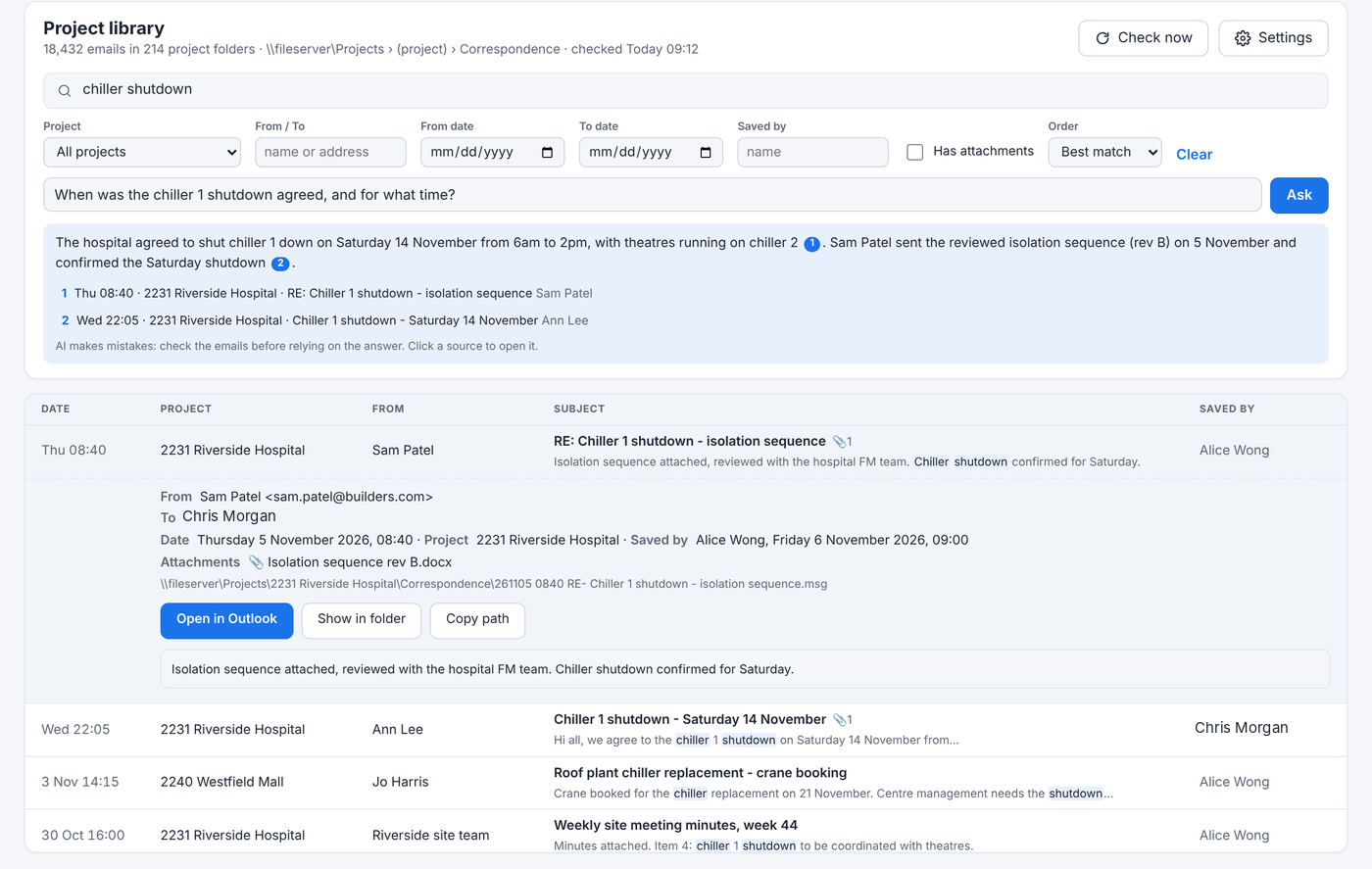
The project library: your team's email, searchable
- One search across every email anyone has saved to the project folders, including the text in PDF, Word, Excel and PowerPoint attachments.
- Ask the AI, for example “When was the chiller shutdown agreed?”, and get an answer with numbered sources to open.
- Filters for project, people, dates, who saved it and sent or received.
- No server to set up: it lives in the project folders and follows their permissions.
- No double filing: an email a colleague already saved isn't saved again.
Private by design
The AI runs on your PC through Ollama. Your email is never sent to emailbudAI, or to an online AI unless you choose one.
Inside Outlook
An add-in shows the summary and tasks beside the open email in classic and new Outlook, and files sent mail as you send it.
Looks after itself
Starts with Windows into the tray, runs on a schedule, and tells you when an update is ready. Help is one click away.
For companies
Ready for a pilot today, with company-wide management on the way.
Available now
- Silent install for Intune or ConfigMgr, choosing the right AI model for each PC.
- Administrator settings locked for everyone using a project library: File on Send, “every sent email must be filed”, marking, the AI model and updates.
- SharePoint, OneDrive and Teams folders as project folders.
- Update control: notify, automatic or held for IT.
- A detailed IT Support Guide.
Future development coming
Planned, not yet available.
- Company accounts and seats: buy licences on the web portal; staff take a seat when they first open emailbudAI.
- Company admin portal for seats, users, versions and help cases.
- Project team weekly report: a project manager pulls one report built from the whole team's emails on a project that week, a play-by-play of what took place, and whether each email was closed out, judged from what each person replied.
- Central settings and project lookup: one company list of projects, job numbers and contacts for every PC.
- Office AI server so lower-spec PCs can use a powerful shared model inside your network.
- Server search, single sign-on with Microsoft Entra ID, and MSI packaging.
New accounts are by invitation only
emailbudAI is in early access, and new accounts are by invitation only for now. Register your interest and we'll email you when we can offer you a place. Already have an invite code? Sign in with it.
We use these details only to reply about emailbudAI. See our privacy policy.
Before you install: two things to know
Windows will warn you about the installer
The emailbudAI installer is not yet code-signed with a commercial certificate. Until it is, Windows SmartScreen, and sometimes your browser or antivirus, may say the file is unrecognised or could be unsafe. There is nothing wrong with the file other than the missing certificate. Updates installed by emailbudAI itself are digitally signed and checked.
- Download it only from this website.
- If your browser asks, choose Keep.
- When Windows shows “Windows protected your PC”, click More info, then Run anyway.
On a work PC, ask your IT team first: they may need to allow it.
You add the Outlook add-in yourself
The emailbudAI Outlook add-in isn't certified or listed in Microsoft's add-in store yet, so it isn't installed automatically. You add it to Outlook by hand once. It's pretty straightforward and takes about two minutes:
- In emailbudAI, open More > Outlook add-in… and click Save add-in file.
- Open Outlook's Add-Ins for Outlook window (classic Outlook: File > Manage Add-ins; new Outlook: go to aka.ms/olksideload).
- Choose My add-ins > Add a custom add-in > Add from File, pick the file and click Install when Outlook says it isn't from the store.
- Restart Outlook.
Step-by-step pictures: User guide, chapter 12. emailbudAI works without the add-in too.
Guides


Pricing
First adopter
No subscription, ever, while we offer emailbudAI.
- Every feature, including the Storyboard and project library
- For you, on one PC (8 GB of memory or more)
- Invitation only: register your interest to be considered
Personal
30 days free first, no card needed.
- Every feature, including the Storyboard and project library
- One PC per account (move it to a new PC any time)
- Cancel any time from your account page
Company
Minimum 10 seats (A$350 a month).
- Everything in Personal, for each person
- Seats bought by the company; staff take one when they first open emailbudAI
- Admin portal, central project lists and the project team weekly report as they arrive